Make it yourself / streaming
Make a Starting Soon screen without Photoshop
By Baseframe Kinetics · Published
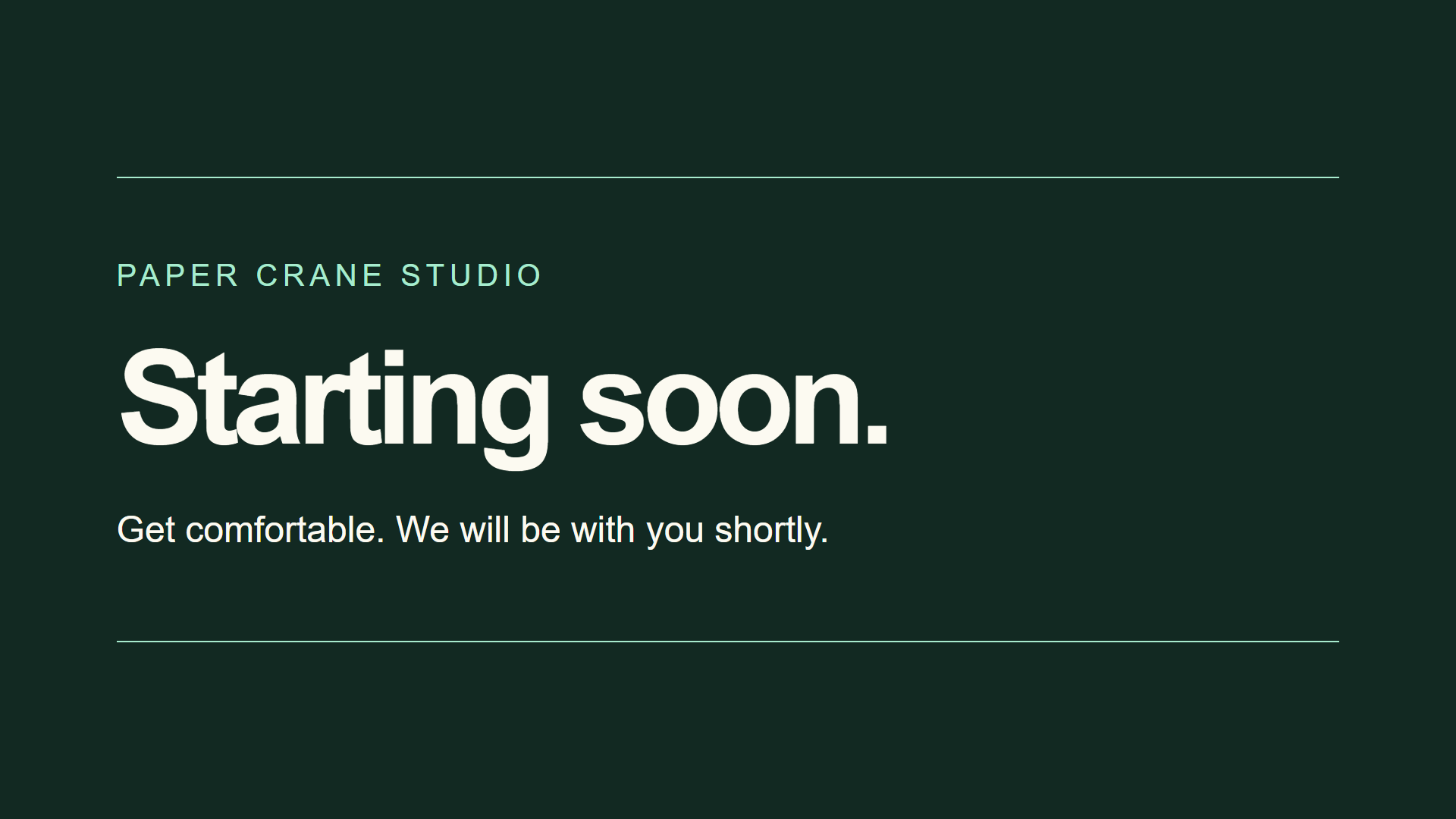
You do not need Photoshop to make a simple Starting Soon screen. Write the name, message and colors in an HTML file, then load it with OBS Browser Source. The original example below keeps everything in one file and uses no account, online font or plugin.
This route suits a clean screen built from type and lines. It does not replace illustration, video editing or a designer's custom visual work. If you want to avoid code, our free Signal editor lets you personalize a different ready-made design. The tutorial file is a separate teaching example, not a new paid kit.
1. Start with a working file
Download the HTML teaching example, or copy all the code below into a plain-text editor. Save it as starting-screen.html, not starting-screen.html.txt. A word processor document is not an HTML file.
Show the complete editable HTML
<!doctype html>
<!-- Original Baseframe Kinetics teaching example, 2026.
You may use and modify this file in your own broadcasts and recordings,
including monetized channels. Do not resell it as a standalone template. -->
<html lang="en">
<meta charset="utf-8">
<meta name="viewport" content="width=device-width,initial-scale=1">
<meta name="robots" content="noindex">
<title>My starting screen</title>
<style>
  :root { --accent: #a7ebce; --background: #122922; background: var(--background); }
  * { box-sizing: border-box; }
  body { margin: 0; min-height: 100vh; display: grid; place-items: center;
    background: var(--background); color: #fcfaf1; font-family: Arial, sans-serif; }
  main { width: 84vw; padding: 6vh 0; border-top: 2px solid var(--accent);
    border-bottom: 2px solid var(--accent); }
  .channel { color: var(--accent); font-size: clamp(16px, 2.1vw, 42px);
    letter-spacing: .16em; text-transform: uppercase; overflow-wrap: anywhere; }
  h1 { margin: 5vh 0; max-width: 100%; font-size: clamp(44px, 9vw, 180px);
    line-height: .98; letter-spacing: -.06em; overflow-wrap: anywhere; }
  .note { font-size: clamp(18px, 2.5vw, 50px); line-height: 1.4; max-width: 38ch; }
  /* One short entrance, then the screen stays still. */
  @media (prefers-reduced-motion: no-preference) {
    h1 { animation: arrive 700ms ease-out both; }
  }
  @keyframes arrive {
    from { opacity: .2; transform: translateY(16px); }
    to { opacity: 1; transform: none; }
  }
</style>
<main>
  <p class="channel">Paper Crane Studio</p>
  <h1>Starting soon.</h1>
  <p class="note">Get comfortable. We will be with you shortly.</p>
</main>
</html>
2. Change only four things first
- Replace
Paper Crane Studiowith your channel name. - Replace the sentence in
class="note"with your own short message. - Set
--accentto your accent color, keeping the#and six hexadecimal characters. - Set
--backgroundto your background color. The example also paints the HTML root so the standard OBS transparent-body CSS does not erase it. Keep enough contrast for the text to remain readable.
The example uses system Arial, so you do not need to find or upload a font. Leave the tags, braces and quotation marks intact while learning. If you want a literal ampersand or less-than sign in your text, write & or <. Long messages can make a screen crowded even when they technically fit; keep the headline short.
3. Add your file to OBS
Choose Browser under Sources, enable Local file, browse to the saved HTML and set Width to 1920 and Height to 1080. Use our OBS setup and troubleshooting guide for the full installation steps. Keep the file in a stable folder and refresh the source after editing it.
OBS's Browser Source documentation describes local HTML and source dimensions. Media Source is the separate route for video and audio files. This example is HTML, not an MP4; downloading it does not start a stream.
4. Choose a still screen or a short entrance
The headline makes one 700-millisecond entrance, then stays still. The normal CSS keeps it visible without animation. The reduced-motion media query only enables that entrance when the source environment reports no preference for reduced motion.
For a reliably still export regardless of the source environment, remove the entire @media block. The unused keyframes may also be removed. A viewer watching your broadcast cannot change the motion already captured in your video, so choose your broadcast's motion deliberately.
What have we checked?
On November 1, 2026, we loaded this exact unedited teaching file through Local file in OBS Studio 32.1.1 on Windows at 1920 × 1080. The text, lines and background rendered, and OBS saved the original source capture shown above. We checked the final rendered frame, not the short entrance timing, edited versions, other platforms or a broadcast or recording under load.
Before using any edited version, check spelling, text fit and color contrast at your actual canvas size. Then make a short private recording in your own setup. This file makes no requests to external services, but OBS itself and other sources can use the network.
When should you use a ready-made screen?
Choose a ready-made design when you want to change text and colors without maintaining code. Choose this file when you want a small example you can inspect and adapt. Choose a designer when you need custom illustration or a visual identity you cannot achieve with these building blocks. None of those choices guarantees viewers or income.
Prefer a visual editor? Personalize the free Signal Starting Soon screen. If you install Signal, its optional setup feedback helps us learn what worked. The proposed $19 full Signal kit remains unavailable for purchase.
Use permissions
You may use and modify this original teaching file in your own broadcasts and recordings, including monetized channels. Attribution is appreciated but not required. Do not resell it as a standalone template. It contains no music or third-party artwork. Fonts supplied by your operating system remain subject to their own terms.